Updating Manual Inventory
Navigate to Settings à Inventory.
Click Freeze Inventory to freeze the quantity of the items displayed in the grid.
Click Manual Inventory.
When the inventory is frozen, the Frozen Quantity will be equal to the total quantity on hand.
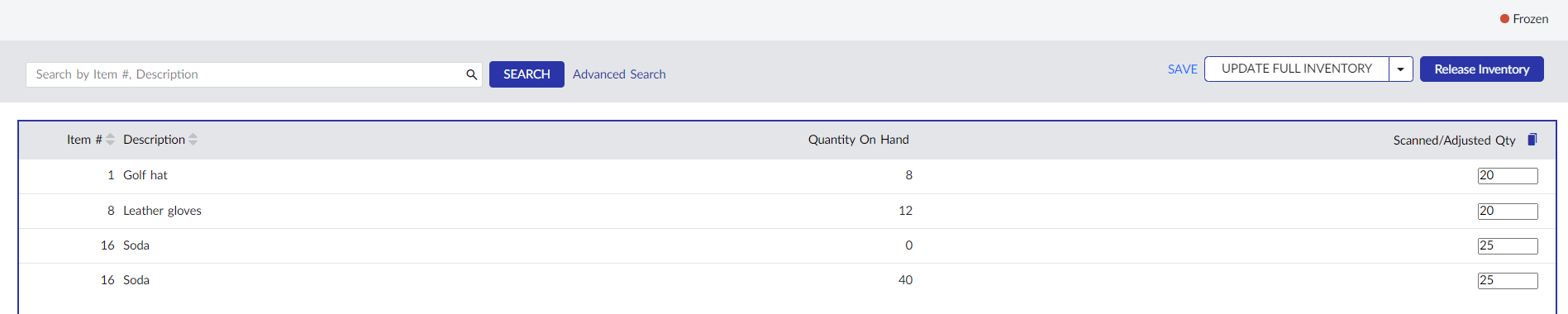
Update the Scanned/Adjusted Qty section with the preferred quantity of the items.
Click Save to save the changes made to the items.
Click Update Full Inventory to update the Scanned/Adjusted Qty for all items in the grid. This will enter the final counts of items in the inventory.
Click Update Partial Inventory to update the Scanned/Adjusted Qty only for the preferred items. This will enter the count of items which are greater than zero.
An alert appears displaying the procedure of updating the quantities of selected or all the items in the grid.
Click YES to proceed with updating the quantities.
The quantity of the frozen inventory can be copied by clicking the Copy icon.
Users can also perform the following actions in the Commission Setup screen:
-
Click the Advanced Search option in the Inventory grid to allow users to narrow down the search results by the preferred options.
-
Filter the retail items by category or sub category (levels from 1 to 5) using the Advanced Search.